Guide · Live now
How to use VizaFiz
From download to your first alert, step by step. VizaFiz only sends alerts. It does not book appointments and does not bypass captchas.
1. Install the Windows app
- Open the download page and download VizaFiz for Windows 10/11 (64-bit, at least 8 GB RAM).
- Run the installer. If Windows SmartScreen appears, choose More info, then Run anyway, only for a file you downloaded from the official VizaFiz download page.
- Open VizaFiz from the Start menu.
2. Sign in
- Create your account on the website first (sign up) and verify your email.
- In the app, click Sign in. Your browser opens, you sign in there, and the app connects to your account.
3. Add a free AI key (or use the local model)
- The AI Assistant uses your own free key from Gemini, Groq or OpenRouter. Read the free AI keys guide to get one, with daily limits and official sources.
- Paste the key in the app and click Test. The key stays on your PC.
- Optional: you can download a free local model instead. It runs on your PC and needs no key.
- Live alerts need at least one working option: a tested key or the local model. Learning mode works without either.
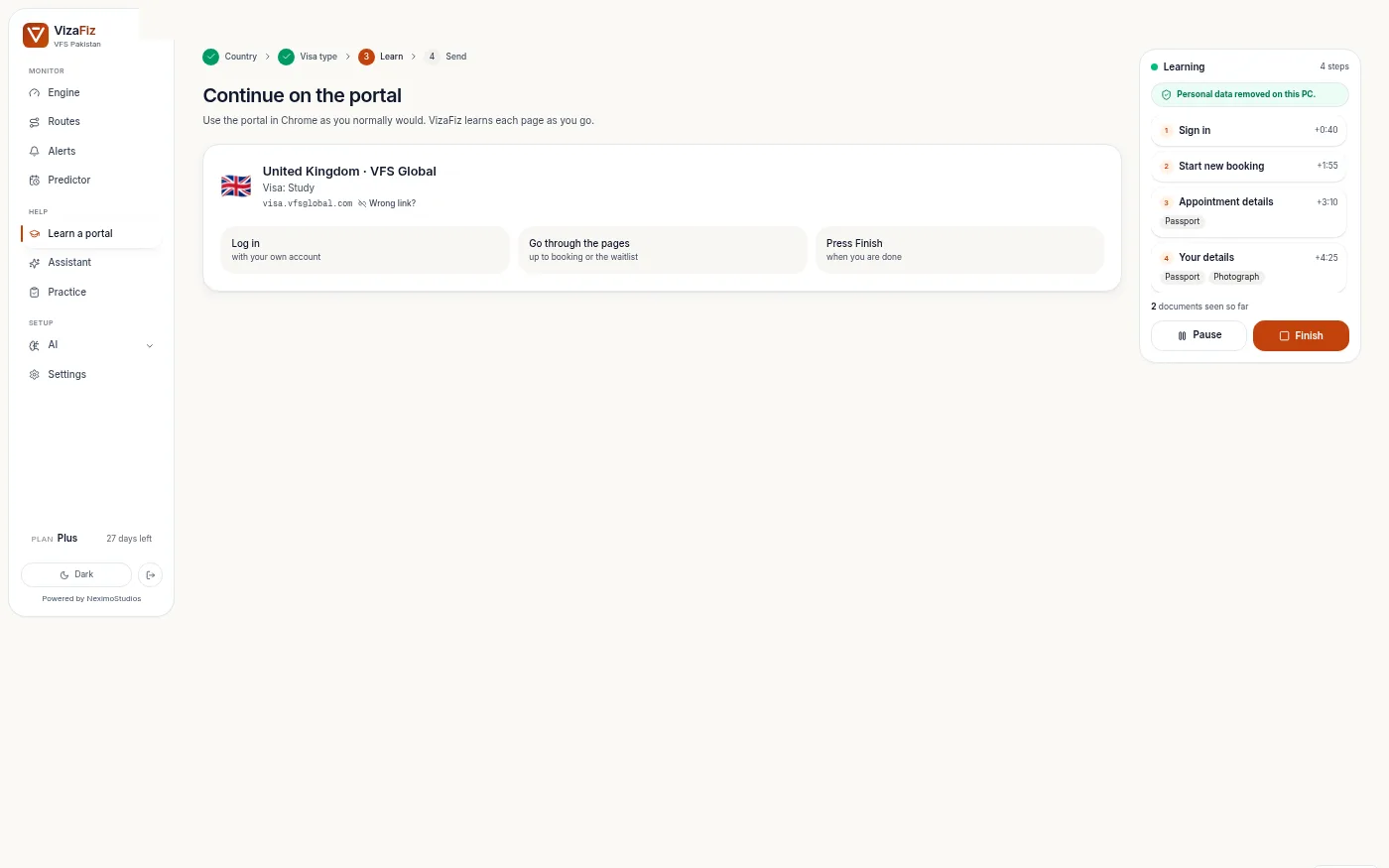
4. Learn a portal (Learning mode)
- Click Learn a portal, pick the country, then pick the visa type (for example study, business or visit).
- The official portal opens. Use it as you normally would: sign in, open the booking pages.
- VizaFiz notes each step you take. Personal data is removed on your PC before anything is saved.
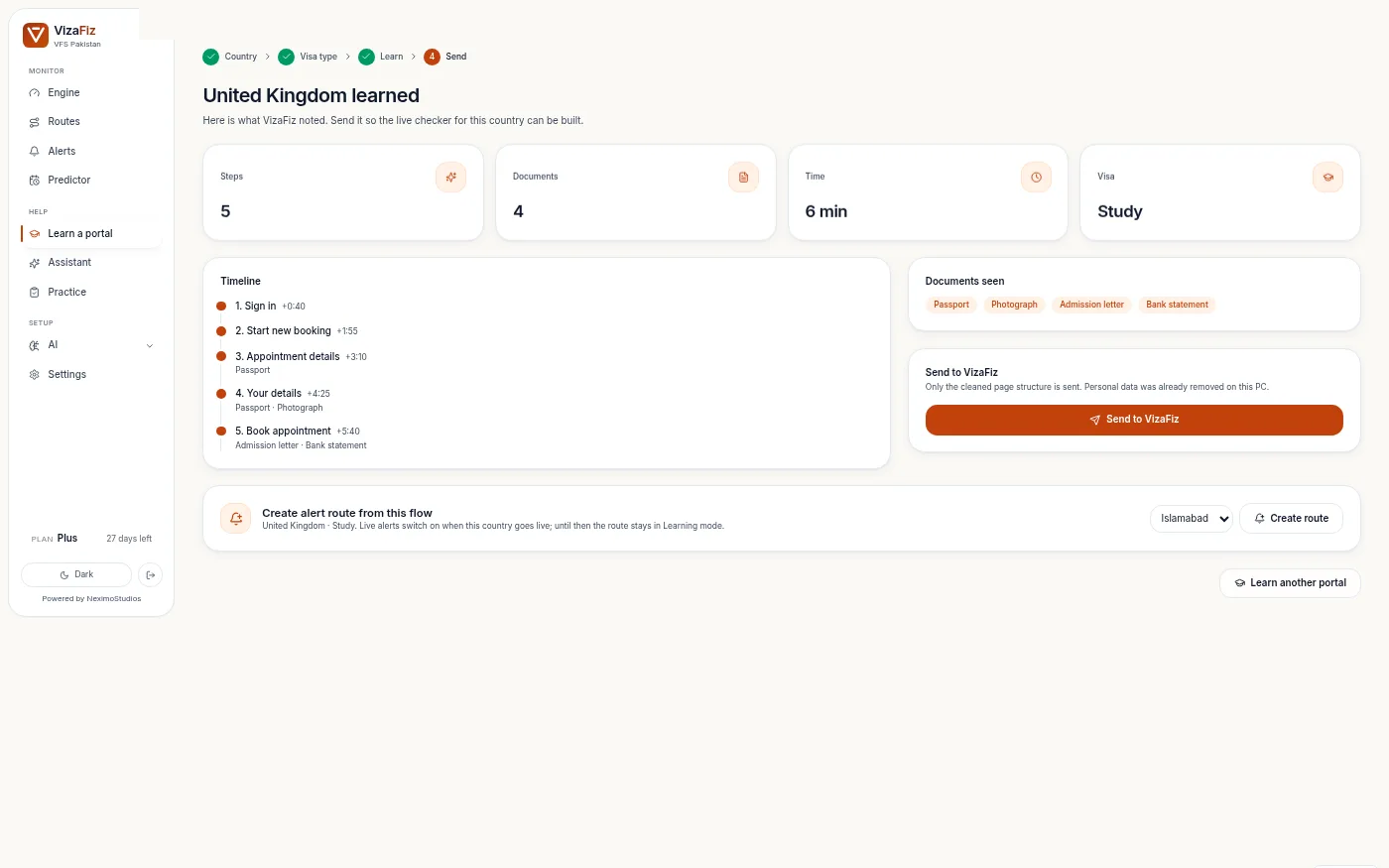
- When you are done, you see a summary of the steps. Click Send to share it with VizaFiz, then Create alert route to start watching this flow.
5. Check the summary and create an alert route
- The summary shows the steps, documents seen and time taken.
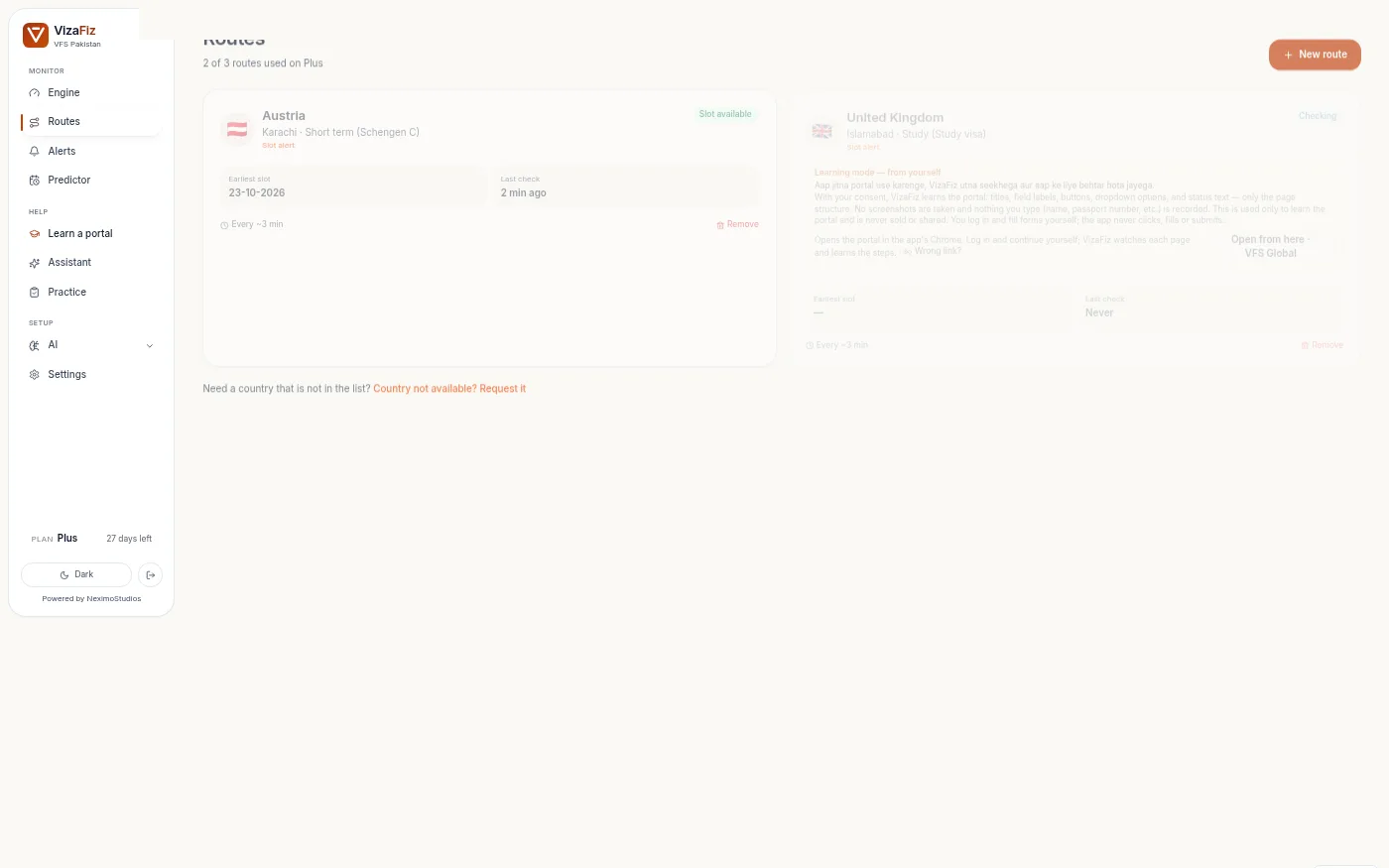
- Click Create alert route. The route appears on the Routes page and VizaFiz starts checking it.
6. Manage your alert routes
- Open Routes to see every route you watch. Add a new route or remove one at any time.
- The number of routes depends on your plan. See pricing.
- If the portal shows a captcha or asks you to sign in again, VizaFiz pauses and tells you. You solve it yourself; VizaFiz never bypasses captchas.
7. Get alerts on Telegram and email
- Open Alerts, click Open Telegram and send the code shown to the VizaFiz bot. Your chat is now linked.
- You can also link a Telegram group or channel. Email alerts go to your account email.
- An alert means possible availability. Always verify on the official portal and book it yourself. VizaFiz never books.
8. Found a wrong link? Tell us
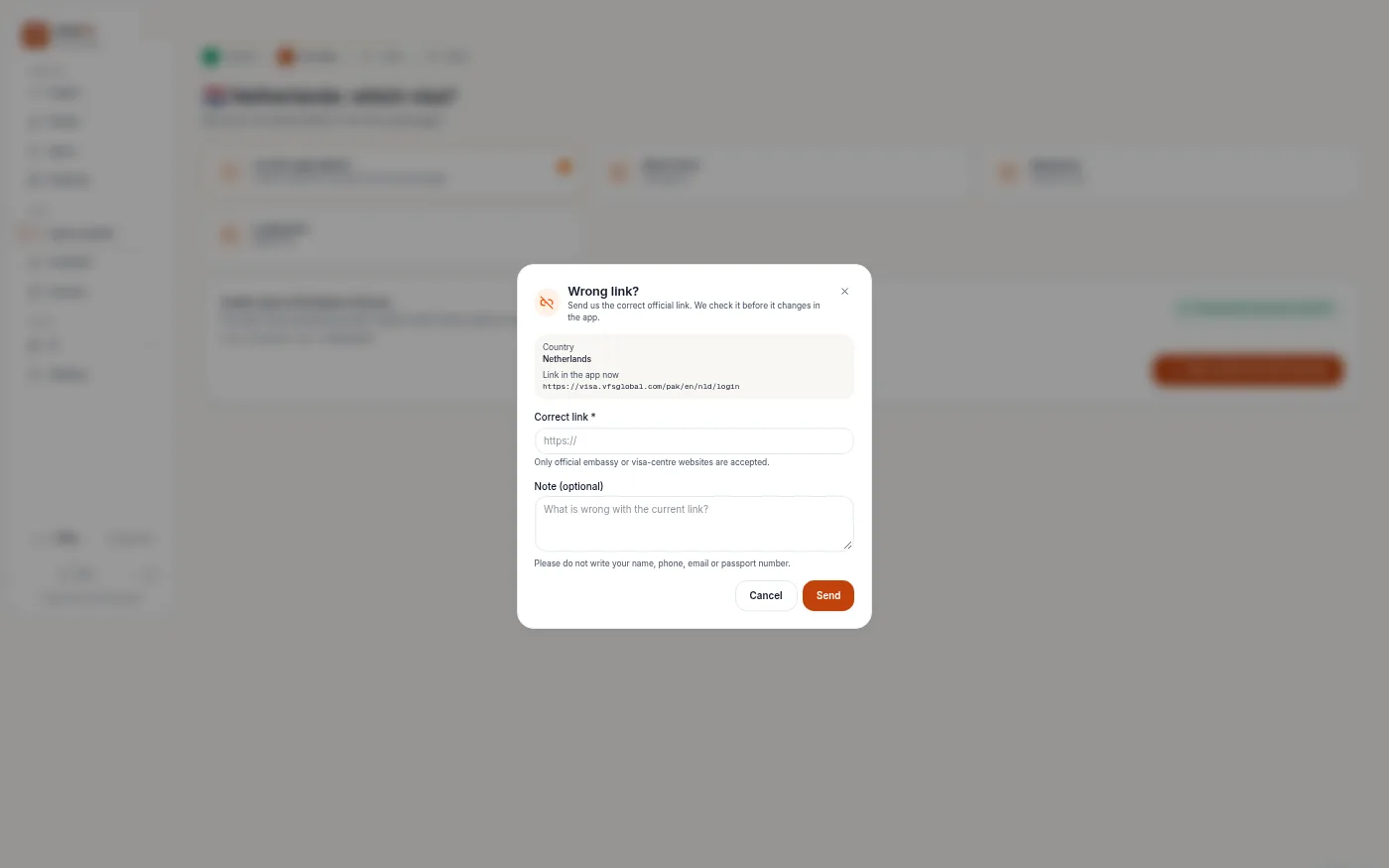
- If a country or visa type opens the wrong page, click Wrong link? and paste the correct official link.
- Only official embassy or visa-centre websites are accepted. We check it before it changes in the app.
9. Updates
- When a new version is ready, the app shows an update banner. Click it to install, or choose Later.
- Updates are signed, so the app only installs updates that really come from VizaFiz.